 privacy

As the Coalition Against Stalkerware explains, stalkerware lets someone secretly monitor your private life through your mobile device. Depending on the tool and the access it has, an abuser may be able to view your searches, location, messages and photos, or monitor your calls. These tools are often easy to buy and install, and can run in the background without your knowledge or consent. Their availability does not excuse the person who uses them to abuse you.
Technology has made stalking easier and more dangerous. Recent figures from Kaspersky give a sense of the scale: more than 34,000 people across more than 160 countries were affected by stalkerware in 2024-2025. During the same period, Kaspersky researchers found 33 previously unknown stalkerware families. You can learn more in Kaspersky‘s tech–enabled abuse report.
Stalkerware and other forms of digital monitoring are rarely about a single hidden app. More often, monitoring involves several ways of accessing your information: installed software, account logins, quietly enabled sharing settings, configuration profiles and physical trackers.
Because of this, checking your device is less like running a malware scan and more like a careful investigation — one where the order of your actions matters as much as the actions themselves. The key is not to memorize every menu path, especially as interfaces change. Instead, ask yourself:
- How could someone be accessing the information I am concerned about?
- Which settings should I check?
- What can I document safely?
- Which tools can I trust?
- Could removing something immediately put me at greater risk?
We’ll guide you through what to look for on Android and iPhone, how to interpret the signs, and — crucially — how to act without making the situation more dangerous. The single most important idea runs through every section: if a check could put you at greater risk, pause and seek help before proceeding.
Ground rules before you check your phone
1. If you might be in danger, do not investigate using the phone you suspect is being monitored
Treat the phone you suspect as if someone may be seeing your screen in real time. Read this guide, look for support, and make plans from a different device the other person cannot reach — a trusted friend’s phone, a computer at a library or workplace, or a new device they do not know about.
2. Do not delete or switch anything off yet
This may feel counterintuitive, but it is important. Removing an app or turning off sharing can alert the person monitoring you. That sudden change may tell an abuser they have been discovered, which could put you at greater risk. Decide whether and when to remove anything only after considering your safety — ideally with help.
3. Save what you find before you change it
Screenshots, app names, settings, and dates can matter later if you ever go to the police or seek a protective order. Capturing evidence first also forces you to look slowly and carefully. Only do this if it is safe to do so.
Four questions to keep asking yourself
As you look through your phone, you will gather a lot of small observations. These four questions can help you make sense of them and avoid rushing to delete something before you are ready.
1. How sure can I be?
A worrying sign is not the same as proof. Some findings are strong evidence; others have ordinary explanations. You can rarely be certain from one clue. A clean app list does not rule out unauthorized account access. A clean security scan does not rule out unwanted location sharing. A factory reset does not help if the abuser can still access your Apple Account, Google Account, email or recovery methods. Look at how the clues fit together, and do not rush to a conclusion.
2. What does it actually look like?
Be specific. Which permissions are turned on? What alerts have appeared? What sharing is set up? Describe what you see before deciding what it means. On Android, warning signs might include an unknown app with location or microphone access, an unfamiliar Accessibility service, or a device admin app that makes removal harder. On iPhone, look for unexpected Find My sharing, an unknown trusted device, unfamiliar iCloud backup activity, a VPN or management profile, or unusual activity in App Privacy Report. An AirTag alert or a privacy alert from a security product may also provide useful clues.
3. Is it open and trustworthy, or hidden?
A legitimate tool should be installed with your knowledge and consent, and do what it claims. Monitoring software may hide, disguise its purpose or resist removal. The key questions are whether you know it is there and have freely agreed to its use. Apply the same care when choosing security tools: do not use just any anti-spyware app you find online. Choose tools from reputable organizations that maintain their software, clearly explain what it can detect, and explain any automatic actions it may take.
4. Can I remove it safely, and is now the right time?
Removal is the last question, never the first. Sometimes the safest and most reasonable answer is “not yet”. Before removing anything, consider whether the action could alert the abuser, destroy useful evidence or escalate the situation. The goal is to protect both your phone and your safety.
The five ways someone can watch you
As we explained above, surveillance may involve several ways of accessing your information, rather than a single malicious app. Searching only for “the spy app” can mean overlooking a compromised password or unwanted location sharing.
Before changing any settings, try to recall exactly what the abuser seems to know and when they first appeared to know it. Was it a message, a photo, a search, a purchase or a meeting? Keep the five main ways someone can use technology to monitor you in mind as you investigate.
1. An app on the phone
This could be dedicated stalkerware or an ordinary-looking app — such as a parental control, anti-theft or phone-cleaning app — misused for monitoring. On Android, start with installed apps, recent installations, permissions, Accessibility services and device admin rights. Some stalkerware tries to hide under a generic name, remove its icon or present itself as a system app. Ask yourself not only “Do I recognize this app?” but also “Does its access match its purpose?”
2. Your accounts
If someone has your Apple Account, Google Account or email password, access to your recovery methods or messaging backups, an active session, or a trusted device, they may be able to see a lot of your information without installing anything on your phone. Unauthorized account access can be easier than installing stalkerware — and easy to overlook.
3. Sharing settings
Built-in features like location sharing, family sharing, and shared photo albums are designed to be convenient — which also makes them easy for someone to switch on without you noticing. Phones are designed to share location, calendars, photos and devices with trusted people. In the context of abuse, those same features can be misused.
4. Profiles and network settings
More technical settings — mobile device management (MDM), VPNs and configuration profiles containing certificates — can control parts of your phone or route its traffic through a network someone else controls. On iPhone, configuration profiles, VPNs and MDM may give another person or organization more control over your device than you realize.
5. A physical tracker
A small Bluetooth tag, such as an AirTag, can be hidden in your bag, car or coat to track where you go. AirTags and other Bluetooth trackers are not phone spyware, but they can be misused to monitor your movements.
You do not have to be a technical expert to check these. The walkthroughs below take them one at a time.
Checking an Android phone
On Android, monitoring often involves an app with permissions that do not match its purpose. It may also use Accessibility services or device administrator rights that make it hard to remove. Go through these checks in order, and write down what you find before changing anything.
Menu names vary by manufacturer. Samsung, Pixel, Xiaomi, Oppo and other devices may label settings differently. If a path does not match your phone, use the search box in Settings to look for apps, permissions, Accessibility, device admin, battery, data usage, VPN or unknown apps.
As you check, pay attention to apps and settings you do not recognize. Ask yourself:
- Does this app’s access match its purpose?
- Could changing this setting now alert someone or destroy evidence?
Once again, do not rush to change settings. Your safety matters more than completing a routine phone check. Here is how to work through the checks on Android.
Step 1 — Look at your installed apps
A monitoring tool has to live somewhere, so start with the full list. Open Settings → Apps. If your menus look different — phone makers rearrange them constantly — just use the search box in Settings.
Look for apps you do not recognize, apps with generic names (“System Service”, “Sync”, “Device Health”), or apps you do not remember installing. Pay particular attention to anything installed around the time you first suspected monitoring. Stalkerware may use an official-sounding name to avoid attracting attention.
On some Android devices, you can also open an app’s information screen to check its installation source, version, permissions, battery use and data usage. If you cannot identify an app from these details, ask a digital security specialist for help before trying more advanced checks.
Make a note of anything that seems suspicious before changing it. Take a screenshot if it is safe to do so, or use another device to photograph the screen. Note the app’s visible name, icon, package name if displayed, permissions, and whether you can uninstall it. If the Uninstall button is grayed out, the app may have device admin rights or another special access setting, which we will check next.
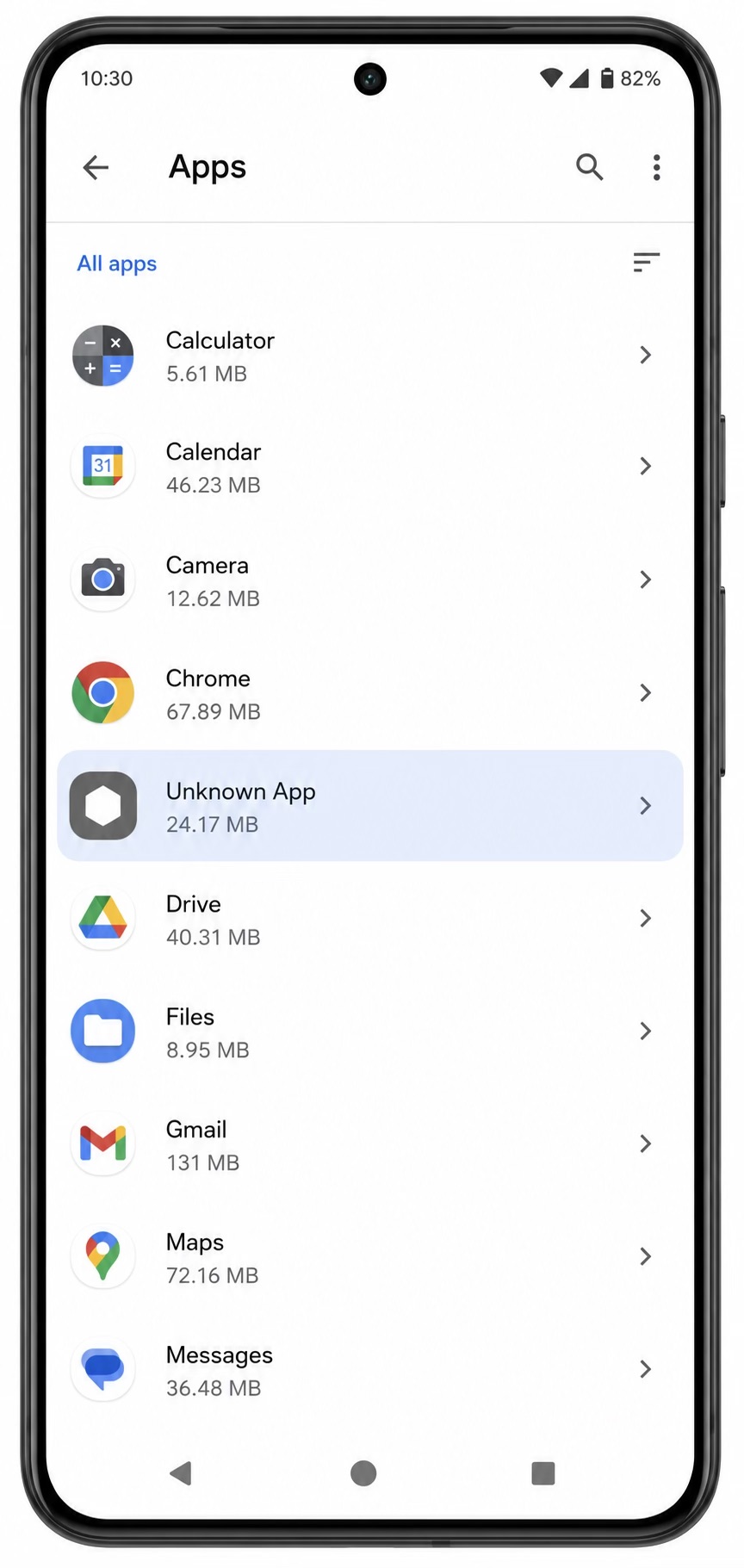
An unknown app in the list of apps
Step 2 — Check what each app is allowed to do
Next, check app permissions. Open an app’s information screen and go to Permissions, or look for Permission manager under Privacy if your phone has that option. Permissions can help you understand what an app may be able to access, although they do not tell you everything it can do.
Pay particular attention to access to your location, camera, microphone, contacts, SMS messages, call logs, phone functions, files and media, notifications and nearby devices. Depending on the permissions granted, an app may be able to see where you go, what you say, who you talk to, what files you keep, and which alerts or messages appear on your phone.
The practical question is always: does this permission make sense for this app? The thing to watch for is a mismatch: an unfamiliar app that has broad, sensitive permissions it has no reason to need. A flashlight app does not need your microphone and your messages. A “battery saver” or calculator does not need to track your location all day. When an app’s access does not fit what it claims to do, that is one of the clearest warning signs there is.
On newer Android versions, Privacy Dashboard can help you check recent access. Which apps accessed your location, camera or microphone during the period shown? Did the timing make sense? Were you using the app then? This is not proof by itself, but it gives you a timeline and helps you see whether several warning signs form a pattern.
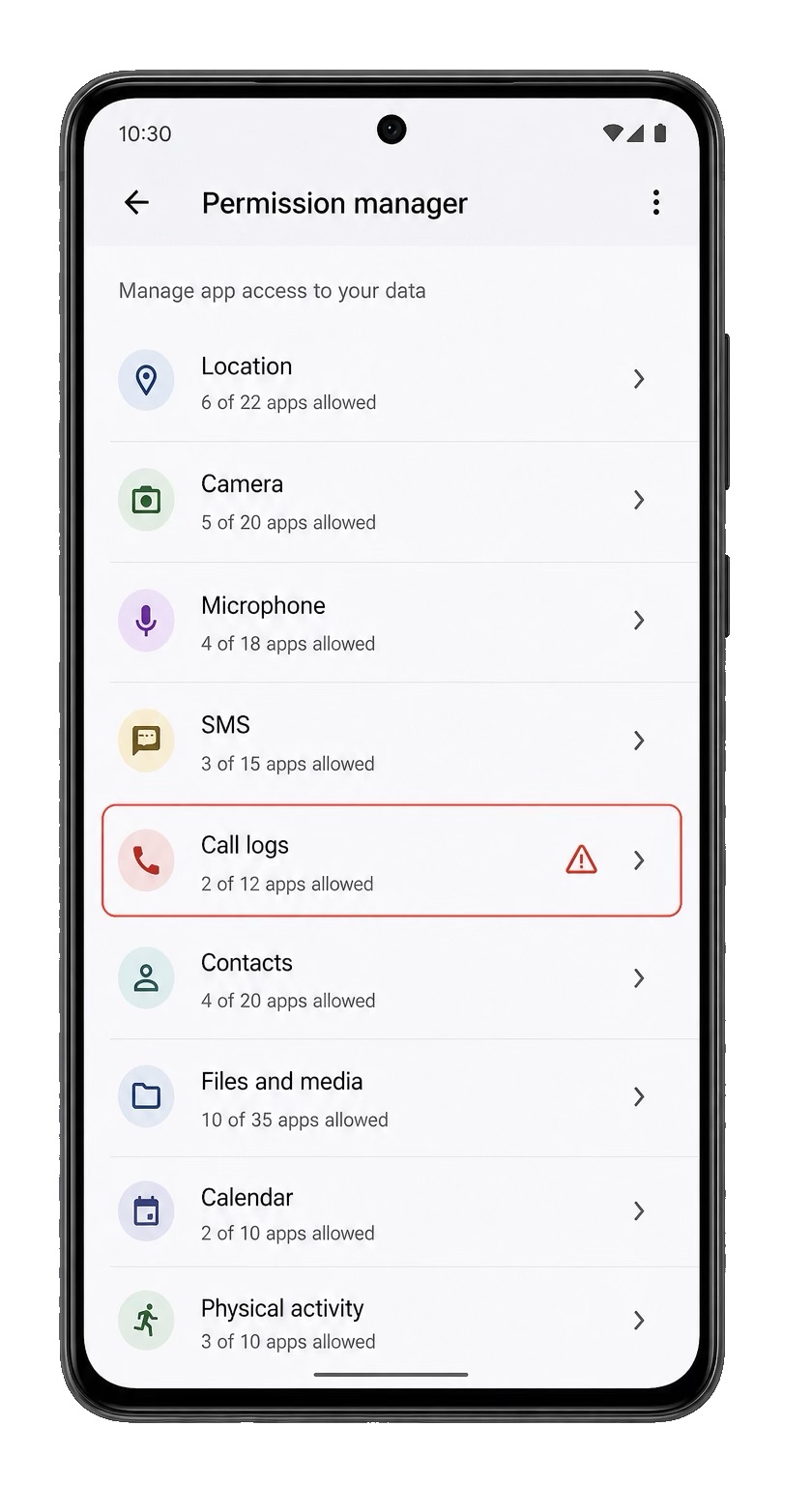
Permission manager helps you find suspicious apps
Step 3 — Check Accessibility and Device Admin
Two Android features deserve a closer look because they grant powerful access that monitoring tools may misuse: Accessibility services and device administrator rights. Legitimate apps may also need these features, so check which app has access and why.
Accessibility services help people with disabilities use their phones. Depending on their capabilities and permissions, these services may be able to read screen content across apps and perform actions on your behalf. A monitoring app can misuse this access to read messages. If an unfamiliar Accessibility service is switched on, investigate carefully.
Use Settings search to look for “Accessibility“. Check downloaded apps or services as well as built-in features. You may rely on legitimate accessibility tools, so the question is not simply whether Accessibility is enabled, but which app or service has access and whether you expect it to.
Device administrator rights let an app enforce certain security policies and can make it harder to uninstall. If an unfamiliar app has these rights on your personal phone, document what you find and consider it when planning any removal.
Use Settings search again to look for “Device admin apps” or “Device administrators“. If something suspicious is enabled, do not immediately turn it off. First ask yourself: would I be safe if the app lost access? Could the abuser notice? Do I need a safer device, legal advice or specialist support before changing anything?
As with every step, document what you see before taking action. Accessibility and Device Admin are not just technical settings; in this context, changing them can affect safety, evidence and escalation.
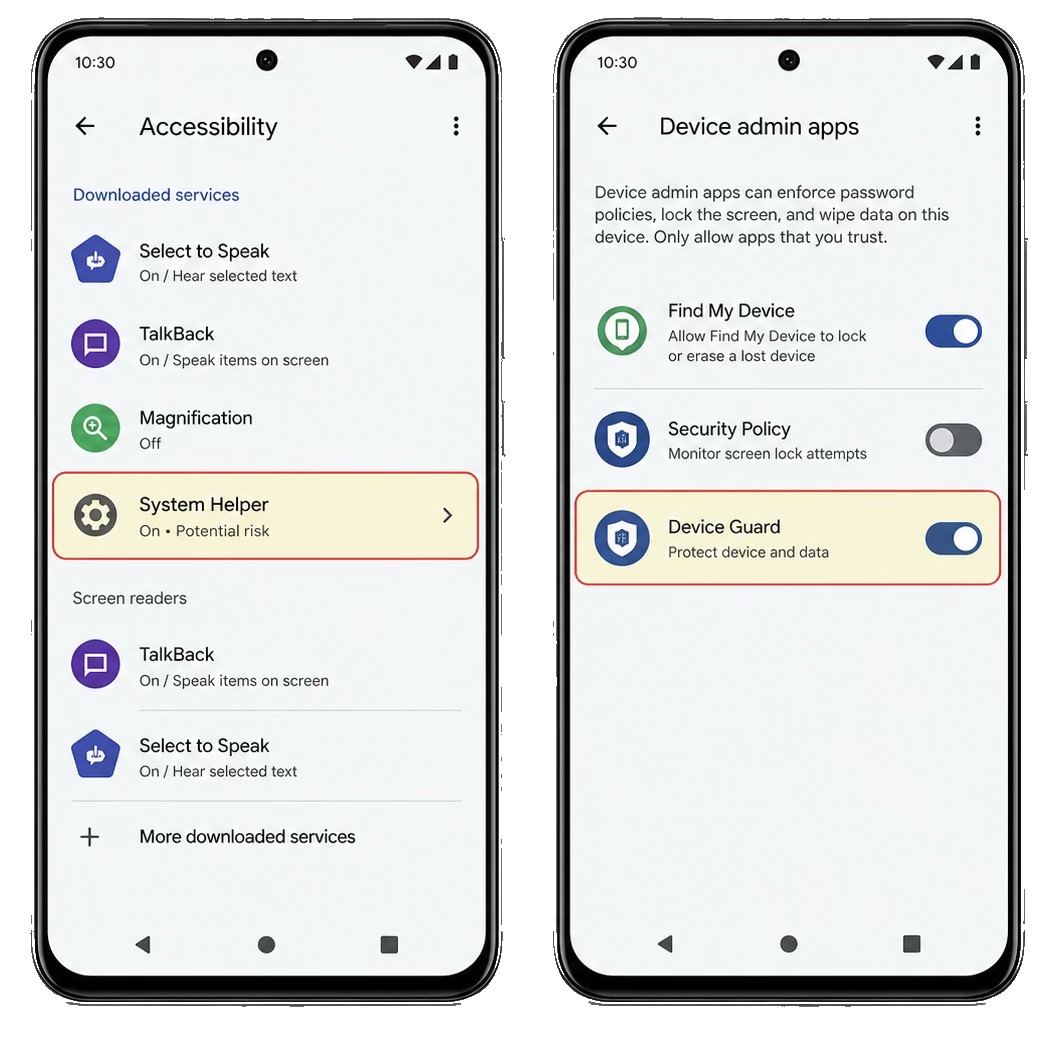
Check Accessibility and Device Admin apps
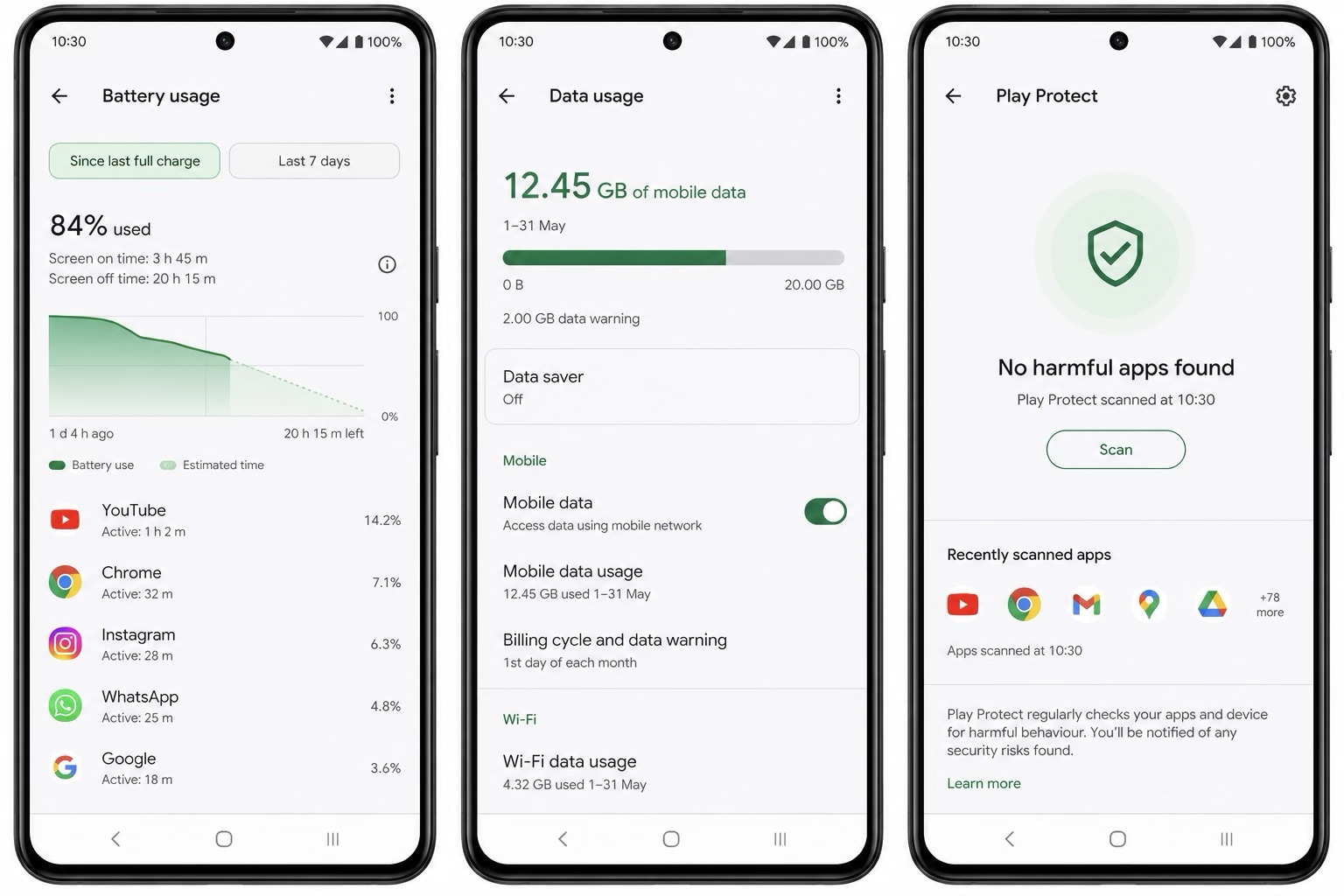
Step 4 — Check battery, data, and Play Protect
Battery, data usage and Play Protect are supporting checks. They are useful, but they are not conclusive on their own. A phone can have battery drain because the battery is old. Data usage can be high because of video, backups or normal apps. Play Protect can miss things. So use these checks as part of your systematic approach, not as a single verdict.
Monitoring software often runs in the background, so it may use more battery or mobile data than its purpose would explain — a simple notes app quietly using data around the clock, for instance. Open Settings → Battery. Look for apps using more power than expected, especially in the background, and consider whether you were actually using them.
For data, go to Network, Internet, Connections or Mobile data, depending on the device. Look for unexpected background data usage. Monitoring apps need to send information somewhere, so unusual data can support other findings, especially when it appears together with suspicious permissions, Accessibility access, or device admin rights.
Then check whether Google Play Protect is available, switched on and showing warnings. It is built into many Android devices and may flag known threats. Open Google Play Store → your profile icon → Play Protect. To review scanning settings, tap the settings icon and look for Scan apps with Play Protect. If protection is disabled, consider whether someone may have turned it off to install a monitoring app. Before enabling it or running a scan, remember that Play Protect can automatically disable or remove harmful apps, which could affect your safety or evidence.
Not every Android phone has Play Protect. Some phones have been configured without Google services, and some devices are sold without them. Its absence is not suspicious by itself, but you will need to rely more on the other checks.
Also remember that a single symptom is rarely enough. Battery drain can be caused by many things. Data usage can be caused by normal apps. A permission can be legitimate. But when several signals cluster together — an unknown app, sensitive permissions, Accessibility, device admin, unusual data use and an abuser knowing too much — the concern becomes stronger.
Several warning signs together may indicate monitoring: an unknown app, broad permissions, Accessibility or admin access, unusual background activity, disabled protection, and someone knowing private information about you
Checking an iPhone
iOS makes it harder to install and hide a monitoring app in the same way as on Android. On iPhone, it is especially important to check sharing settings, account access, iCloud, Find My, trusted devices and configuration profiles.
For that reason, check sharing and accounts first, then move to the more technical settings. iPhone checks often reveal ordinary features being misused: location sharing, shared devices, cloud access, backups, family settings, or management profiles. That does not make the situation less serious. It just changes the response.
As with Android, do not change every setting immediately. Check what you can, document your findings where safe, and consider how someone could be accessing your information. Use what you learn to plan your next steps without creating new risks for yourself.
Step 1 — Use Safety Check
Start by reviewing Safety Check. Apple introduced this feature in iOS 16 to help you review and change sharing and account access, including in situations involving domestic abuse. Go to Settings → Privacy & Security → Safety Check. It offers two options. Manage Sharing & Access lets you review the people and apps you share information with, along with your account security. Use it to understand who has access before deciding what to change.
The second is Emergency Reset, which can quickly stop sharing with people and apps and review account security. Emergency Reset is powerful and can be the right tool in a true crisis, but it is not a casual first step. If someone expects to keep seeing location or shared information and it suddenly stops, they may notice.
Use the review screens to understand who has access before resetting anything. Ask yourself not only “Can I stop this access?” but also “Can I stop it safely, and is now the right time?”
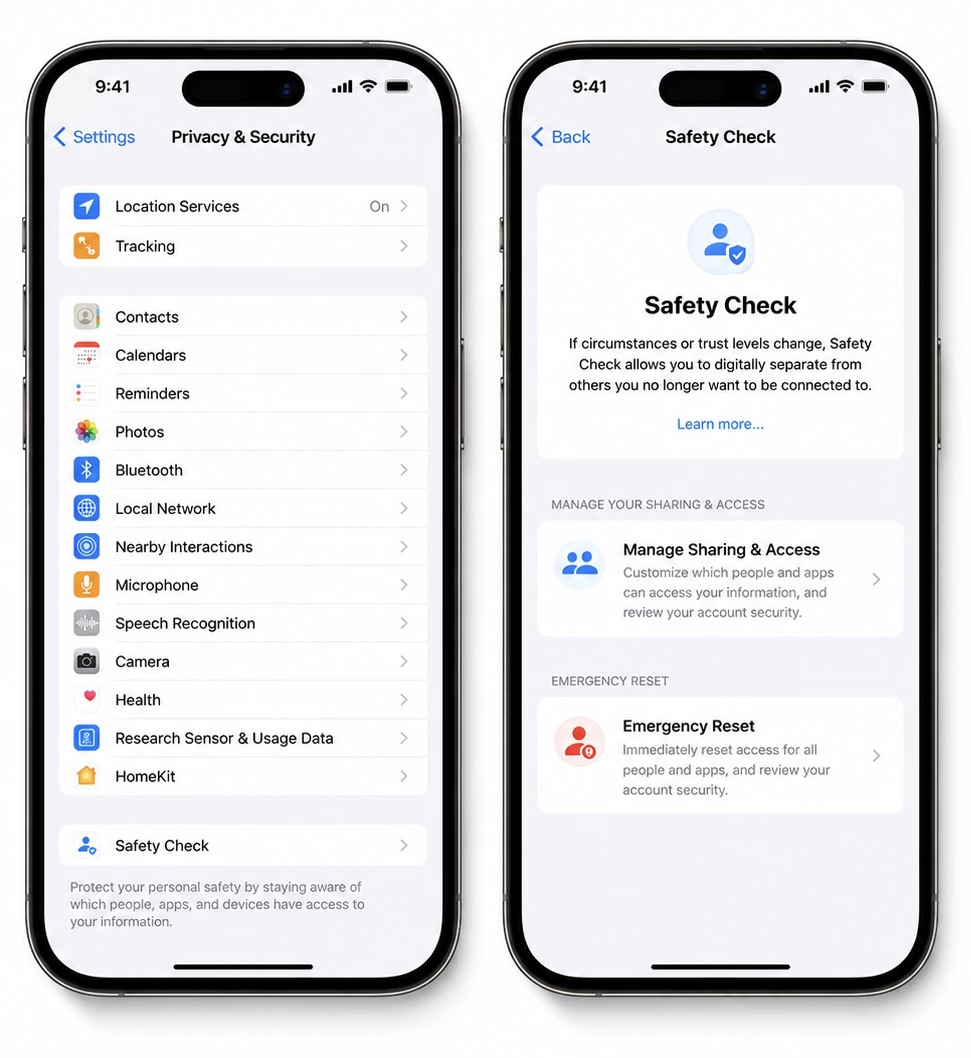
The first step is Safety Check
Step 2 — Check Find My and location sharing
Find My is the most common way an iPhone’s location ends up shared. Open it and look through all four tabs — People, Devices, Items, and Me — to see the full picture. As you go, ask yourself: who can see my location right now, and is there any sharing here that I did not knowingly set up?
You may have enabled location sharing during a relationship, through Family Sharing, for convenience, or when you trusted the other person. In an abusive relationship, the same feature can become a means of surveillance. Ask yourself whether you knowingly enabled sharing, still want it, and understand who can see what.
Also look at Devices inside Find My and on the Apple Account page. An old iPad, a partner’s device, a shared laptop or an unknown device signed into your account can be just as important as a suspicious app. Someone with access to a trusted device or shared account may be able to see information without needing stalkerware on the phone itself.
Be careful before switching anything off. The other person may notice that your location is no longer available. Decide whether that is safe before making the change.
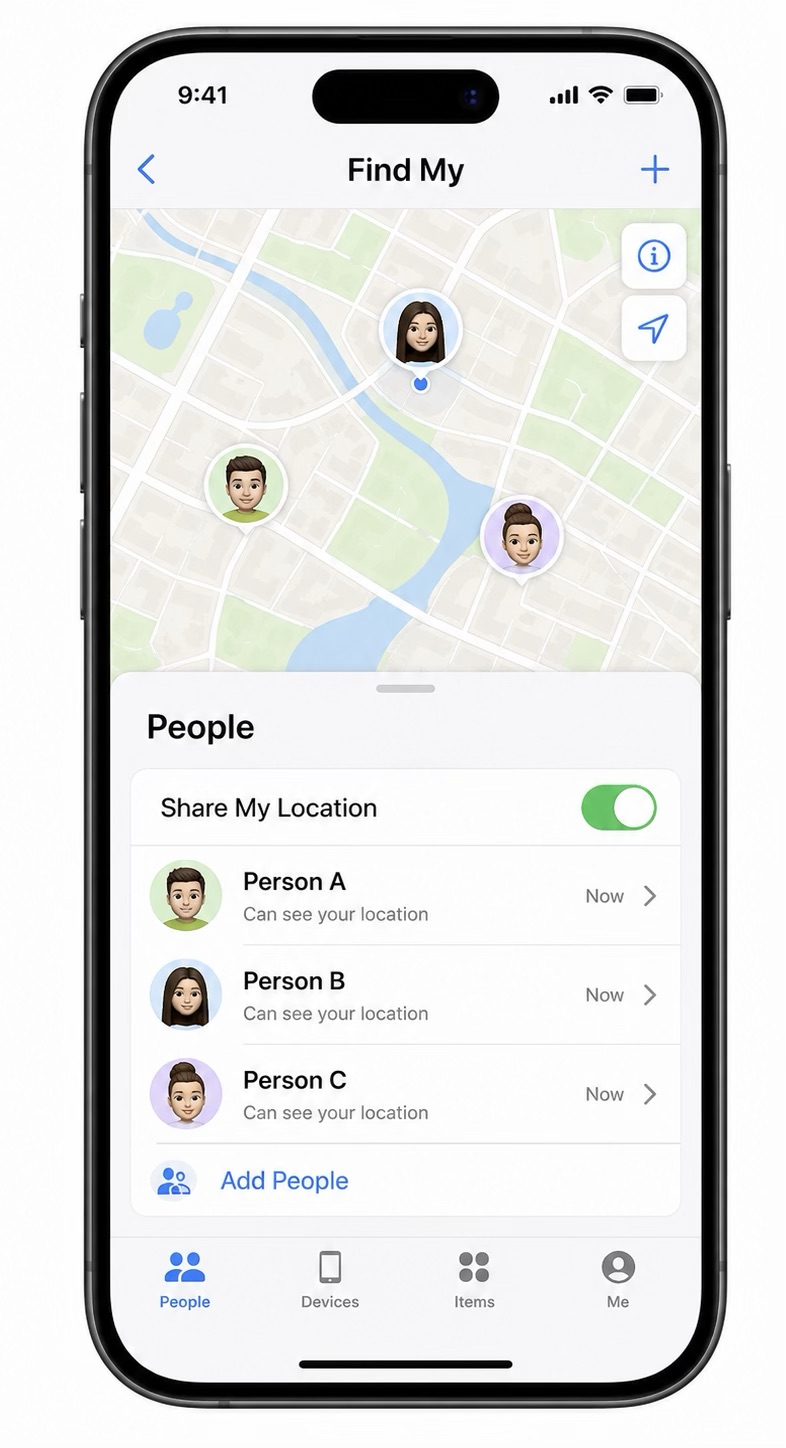
Who can see my location right now, and is there any sharing here that I did not knowingly set up?
Step 3 — Read your App Privacy Report
App Privacy Report can help you investigate suspicious activity. Go to Settings → Privacy & Security → App Privacy Report. It shows recent access to sensitive data and sensors, such as your location, photos, camera, microphone and contacts, as well as the network domains contacted by apps and in-app web content. If it is off, it only starts collecting information after you enable it; it cannot show earlier activity.
As always, look for access that does not seem to match an app’s purpose. You might expect a weather app to check your location. A game or a small utility accessing your microphone or contacts in the background may deserve a closer look, especially if you cannot explain why it needs that access.
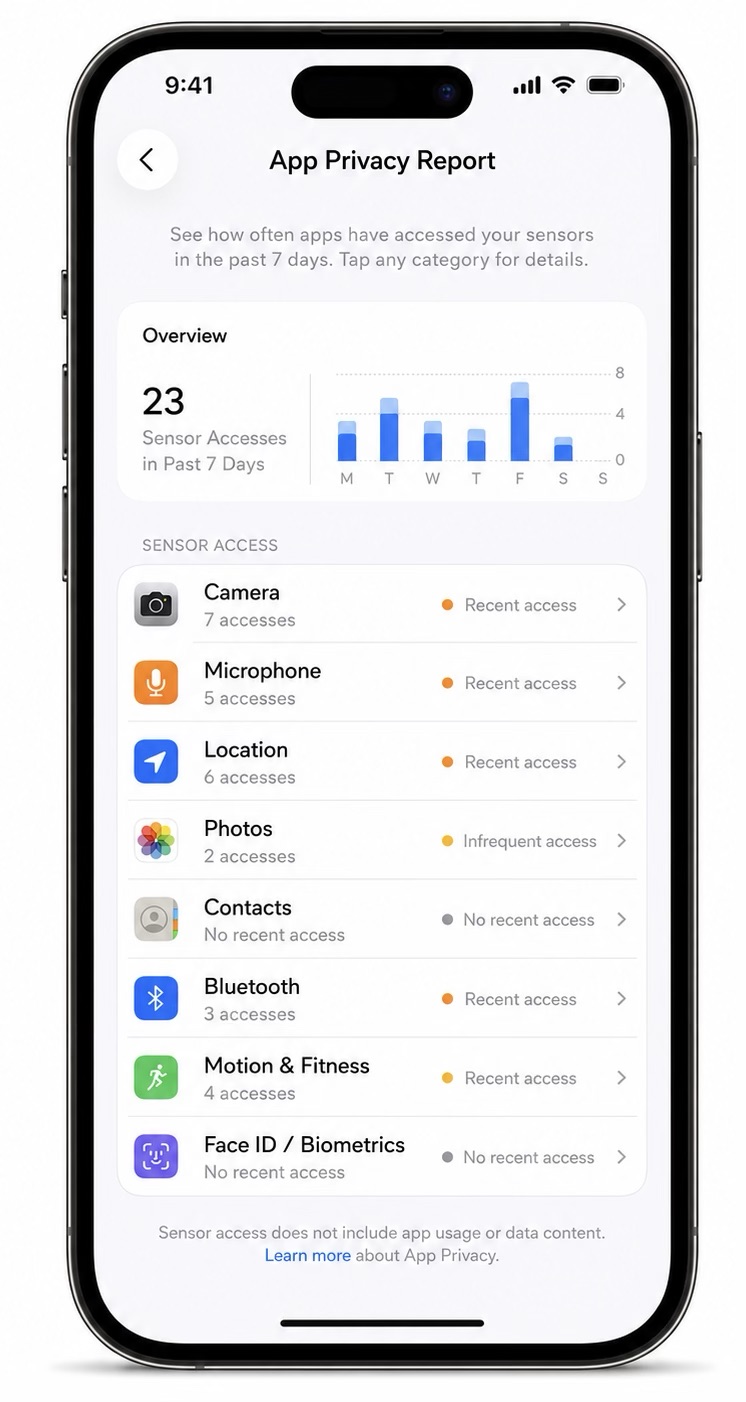
Check App Privacy Report for suspicious apps
Step 4 — Check your account devices and iCloud
Even a phone with no malicious apps can expose your information if someone can access your Apple Account and iCloud. Go to Settings → {your name} and review the list of devices signed in to your account. Look for any you do not recognize.
Ask yourself whether you recognize each device and still control it. An old phone, a shared tablet, an ex-partner’s laptop or an unknown device may explain how someone is seeing your information. Pay attention to devices you no longer own, once shared or cannot physically access.
While you are there, check your trusted phone numbers and recovery options. Someone may have added their own number or retained access to a recovery method. If your phone may be monitored, change passwords from a safer device. If the abuser has access to your email, recovery codes or a trusted device, changing just one password may not be enough.
Also consider iCloud backup and synced data. Some monitoring does not require a hidden app on the phone if someone has access to backups, photos, messages or account data in the cloud. So ask: what is being backed up? Who knows the password? Who can receive recovery codes? Which devices are trusted?
This is where many “my phone is hacked” cases become account-security cases. The response may be to secure the account, remove unknown devices, change recovery methods, enable strong multi-factor authentication and then verify sharing settings. Again, do this in the right safety order. If anything is wrong, plan the next step carefully and use a safer device for account recovery whenever possible.
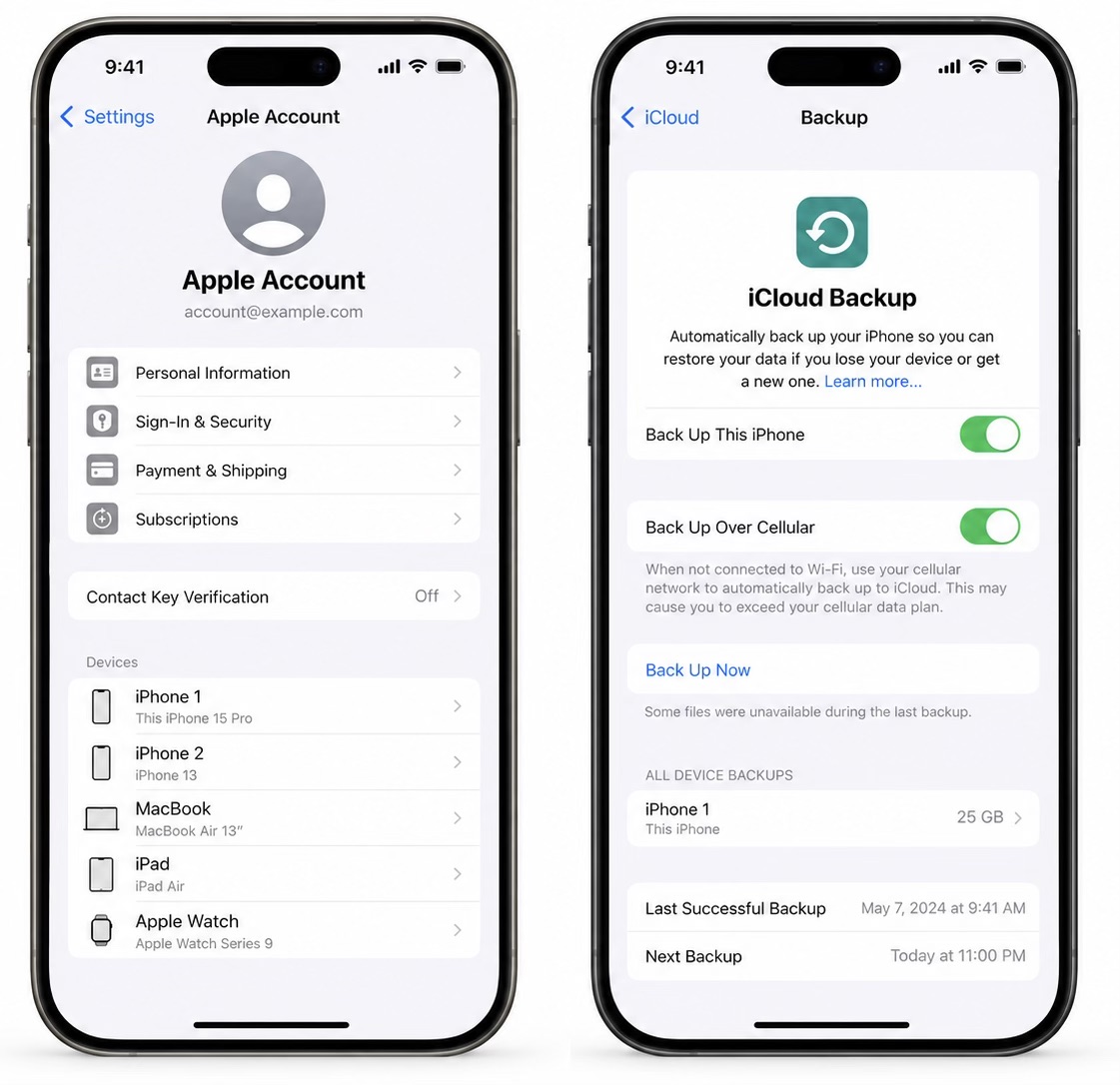
Review the devices signed in to your Apple Account and your iCloud settings
Step 5 — Check VPN and Device Management
Some settings can control parts of your phone or route its internet traffic through a network someone else controls. Go to Settings → General → VPN & Device Management and look for unfamiliar configuration profiles, MDM enrollment or VPNs. If you find any, ask yourself why they are there and whether you agreed to use them.
Profiles, device management and VPNs can be legitimate tools provided by your workplace, school, security app or another trusted service, so do not rush to delete them. On a personal phone, however, an unexplained profile or management setting deserves closer attention. Depending on its configuration, it may install certificates, enforce policies, change network settings or give another party control over parts of your device.
Include this screen in your iPhone checks. It is easy to check apps and location sharing but overlook profiles and VPNs. If your phone is managed by your employer, school or another organization, these settings may be expected. If you cannot explain them, pause and consider whether they could be part of the monitoring.
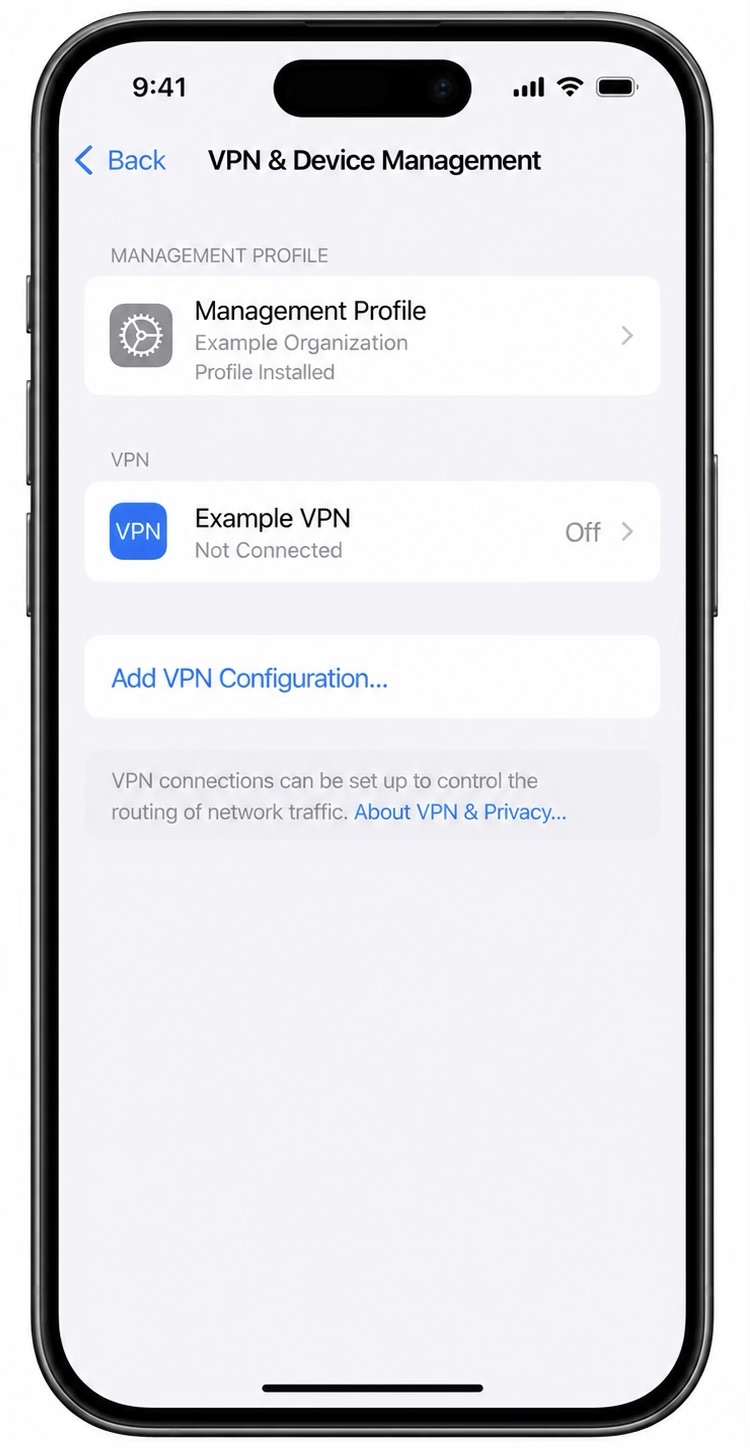
Check VPN & Device Management
Step 6 — Check Developer Mode
Look for Developer Mode under Settings → Privacy & Security → Developer Mode. This setting supports legitimate app development and testing by allowing certain developer-signed apps to run on your phone. It deserves attention if you have no reason to use it.
Apple treats Developer Mode as a security-sensitive setting. It is disabled by default and may not appear in Settings unless you have used development tools with your phone. For most people, it is not part of everyday iPhone use.
Developer Mode may appear after your iPhone has been paired with development tools such as Xcode on a Mac. Enabling it involves a security warning, a restart and confirmation on the phone, including the passcode if one is set. If it is unexpectedly enabled, consider who has had access to your phone, its passcode and any computers paired with it.
If you are not a developer, have never tested mobile apps and do not know why Developer Mode is enabled, investigate. It may indicate that someone changed your phone’s settings to run apps for development or testing. That does not, by itself, mean a monitoring app is installed.
If Developer Mode is enabled and you did not enable it, ask yourself: who had access to my phone, who knew my passcode, who connected it to a computer, and who may have installed or tested apps? Think about this especially if someone else set up or repaired your phone, or gave it to you as a gift.
Developer Mode is not proof of stalkerware. If you did not enable it, however, document the setting before making changes and consider it alongside the other clues.
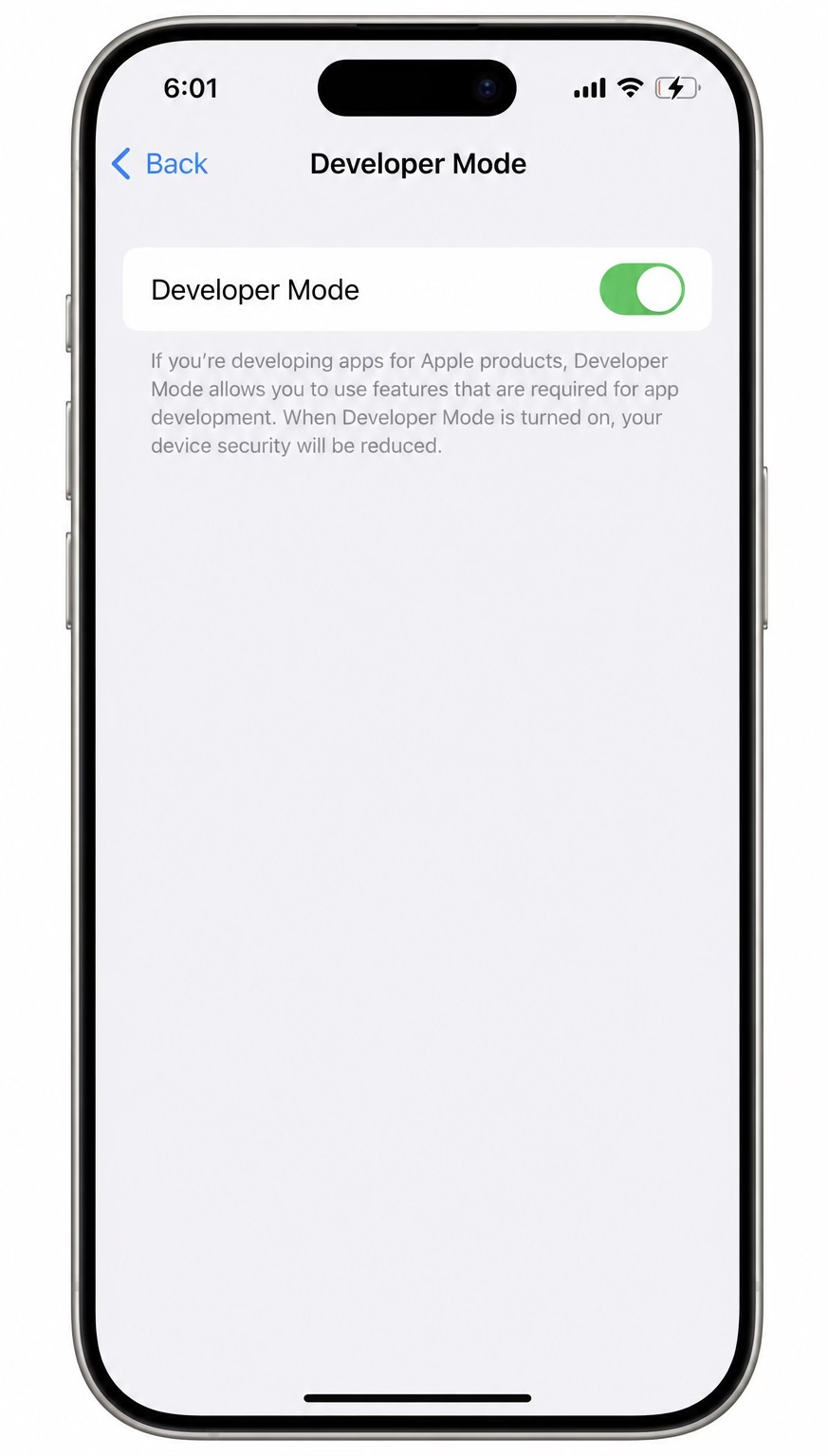
Check Developer Mode
Checking for physical trackers
Not all surveillance involves software on your phone. A small Bluetooth tag — an AirTag or similar tracker — is inexpensive, can be hidden in a pocket or car, and may report its location for months. Both iPhone and Android can warn you about compatible trackers that appear to be moving with you without their owner nearby.
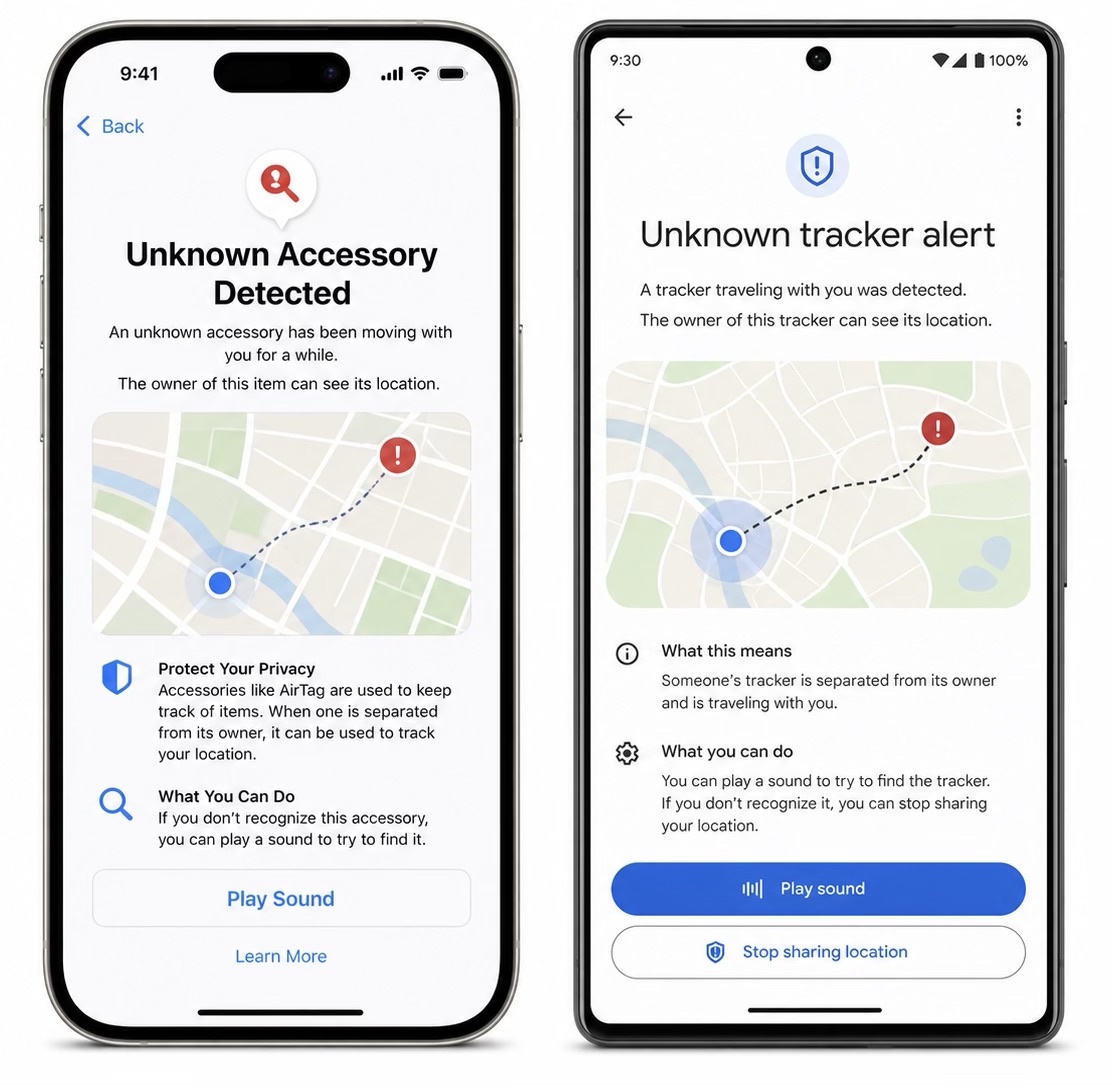
Unknown tracker alerts in iOS and Android
On iPhone, an alert may appear if a compatible unknown tracker moves with you over time. Open the alert to review its location history and, if available and safe, play a sound to help find it. For supported trackers and iPhone models, Find Nearby can help you locate it more precisely.
On Android, go to Settings → Safety & emergency → Unknown tracker alerts. Review any alerts and use Scan now if needed. Android can detect AirTags and other compatible trackers, but available features depend on your phone and software version.
Alerts are useful, but they are not perfect. You may receive an alert late, miss it or have a phone that does not support every feature. Turning off Bluetooth or location services, or turning on Airplane Mode on your phone, does not stop a separate tracker from reporting its location through other nearby devices.
The tracker workflow is simple, but it should still be handled carefully. On iPhone, if an alert appears, open it and review any map or route information. If the option is available and safe, play a sound. If Precision Finding or Find Nearby is supported, use it to narrow down the location. Then search likely places: bags, coat pockets, luggage, car compartments, under seats, inside cases, children’s items and gifts.
On Android, check Unknown tracker alerts if the feature is available. Review the alert details, use Scan now if needed, and search the same likely places. Consider where a tracker may have been placed and whether its reported movements match your experience.
If you find a tracker, document it before disabling it if that is safe. Take screenshots of the alert and map, and record its serial number or identifier if shown. Depending on the tracker, you may also be able to view limited owner information through its alert or by scanning it with an NFC-enabled phone. This could be useful evidence.
The decision to disable a tracker is not purely technical. Disabling it may stop location updates, which can be urgent for safety. But it may also reveal to the owner that the tracker has been found and may affect evidence. Use the same pattern as with phone checks: safety first, document if safe, then act in a planned way.
Trust the pattern, not a single clue
Now that we have looked at phone monitoring and Bluetooth trackers, consider how the clues fit together. You may notice that someone always knows where you are, then find unexpected location sharing, a tracker alert or an app with location access. Or you may suspect that your private messages are being read, then find unusual permissions, unauthorized account access or a trusted device you do not recognize.
One finding on its own rarely settles anything, so think about how the clues add up. A single unfamiliar app, or one tracker alert that might just be a neighbor’s lost tag, is worth noting but is not proof. What is far more telling is a cluster of clues that line up — especially when technical findings, such as a hidden app with broad permissions, an unknown profile, account access or a Bluetooth tracker, match real-life experiences, such as the other person knowing things they should not.
Ask yourself not only “Did I find stalkerware?” but also “How could someone be accessing the information I am concerned about?” The route could be an app, your Apple Account or Google Account, Find My, a Bluetooth tracker, a shared device, or a phone the abuser gave you or set up for you.
When several signs point in the same direction, slow down, document carefully, and think safety-first before changing anything. Trust the pattern. And whatever you find, save the evidence before you change anything, as long as it is safe to do so.
Tools that can help — and how to read their warnings
In this section, we’ll look at how to interpret privacy and stalkerware alerts, what Kaspersky’s Who’s Spying on Me can check, and when specialist tools such as SpyGuard, MVT and AndroidQF may be appropriate.
Tools cannot give you a definitive answer on their own. They provide clues: a suspicious app, a risky permission, an unknown Bluetooth device, unusual traffic or forensic traces. Consider those clues in context. Check carefully, document what you can, and avoid immediate removal if it could alert the abuser or destroy evidence.
A good warning informs you rather than acting for you
A useful warning does more than say “malware found”. It explains the privacy risk clearly and tells you what an app may be able to access — such as your location, messages, call history, browsing activity, keystrokes, microphone, camera or screenshots — so you can assess the risk in context.
A trustworthy product should explain why it has flagged something and what action it may take. In an abusive situation, immediate removal may put you at risk or prevent you from saving evidence. Before using a tool, check whether it only warns you or can automatically disable or remove an app. Use that information to decide when it is safe to proceed.
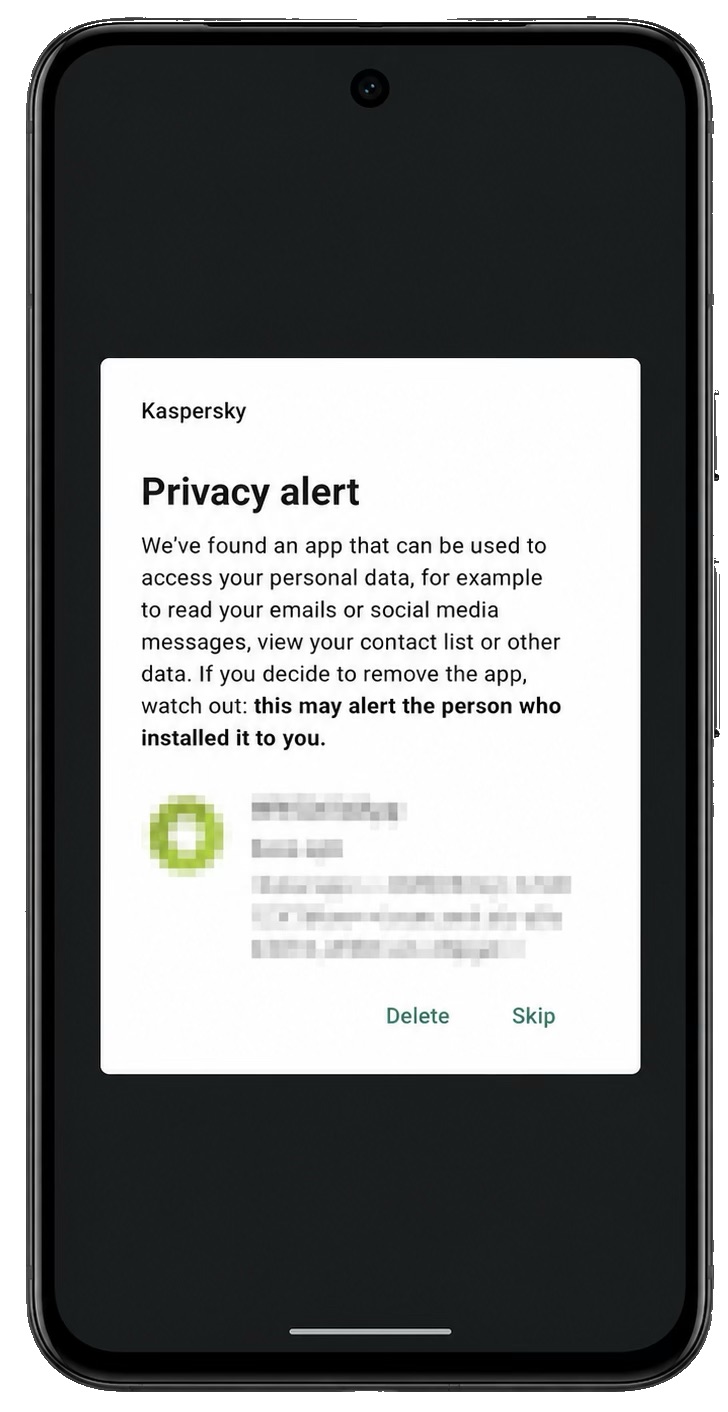
Kaspersky Privacy Alert
The Who’s Spying on Me feature in Kaspersky Premium brings several checks together on Android. It can help you detect spyware and stalkerware, review suspicious apps with monitoring capabilities, check app permissions, and scan for nearby Bluetooth devices that could be used for tracking.
These checks cover several ways you could be monitored: apps, sensitive permissions and physical trackers. They can help you notice unfamiliar apps with excessive access or nearby Bluetooth devices you do not recognize. A nearby Bluetooth device alone, however, is not proof that someone is tracking you.
But any on-device tool must still be used with safety judgment. Running a scan, showing a warning, removing an app or changing permissions can be visible to an abuser or can change the evidence picture. So even with a trusted product, the process is still: pause, document if safe, assess risk, then decide.
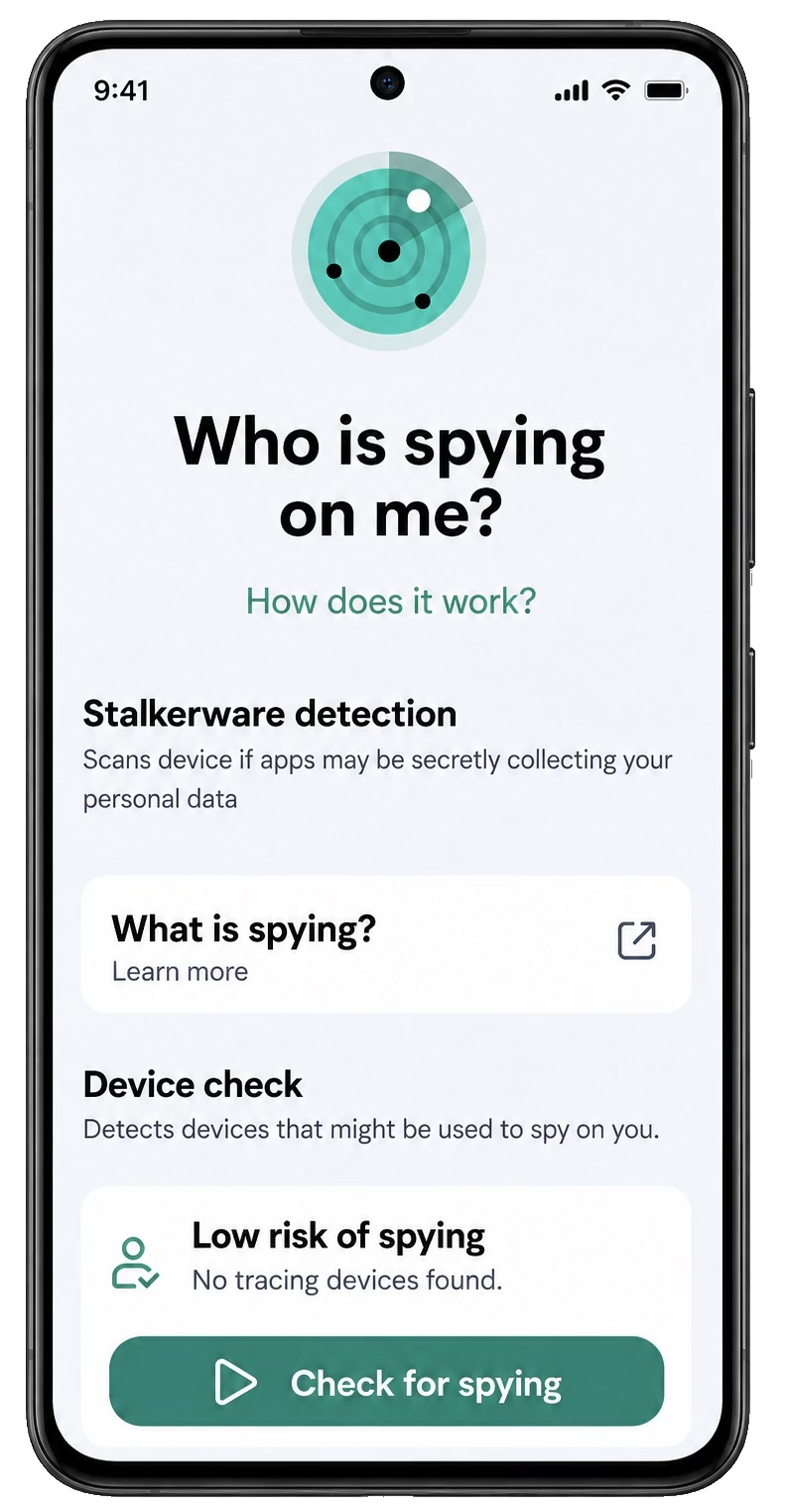
The Who’s Spying on Me feature in Kaspersky Premium
You can work through settings, account access and security alerts with support if needed. Forensic tools require a different level of expertise. If you need a deeper technical assessment, may need evidence for legal proceedings, or face a risk beyond ordinary commercial stalkerware, seek help from a trained digital security or forensic specialist.
One example is MVT, the Mobile Verification Toolkit. It was developed by the Amnesty International Security Lab in the context of Pegasus — a highly sophisticated spyware tool that can infect smartphones remotely, without the owner clicking anything or taking any action.
This is very different from the commercial stalkerware we have mostly been discussing. Ordinary stalkerware can often be bought online and installed by someone with physical access to the phone. Pegasus-style spyware is in a different category: it is expensive, highly targeted, and usually associated with state-level or government-linked surveillance against journalists, lawyers, political opponents, human rights defenders, and other high-risk targets.
MVT is widely known in the digital rights and security research community. It can help trained analysts collect and examine traces from mobile devices, especially from iPhone backups and from certain Android extractions. Tools like AndroidQF, or Android Quick Forensics, can also help collect Android data for later analysis.
These tools are not as simple as opening an app and tapping “scan”. They require technical skill, careful handling of your data, and an understanding of their limits. They can be powerful, but they are not a quick everyday check or the best place for most people to start.
Forensic tools can support an investigation, but they should not be presented as a guarantee. A clean result does not always mean there was no monitoring. It may mean the tool did not find known indicators, the relevant data was not available, the monitoring left no accessible traces, or the case falls outside what that tool is designed to detect.
Choose a tool that fits your situation. For everyday checks, start with built-in settings, account reviews and trustworthy security tools when safe. Specialist tools such as SpyGuard can help trained users analyze network traffic; MVT and AndroidQF support forensic investigations. If you face a high risk or may need legal evidence, involve trained specialists. Use tools to support your safety plan.
Removing surveillance tools safely
Removing surveillance tools requires planning. Sometimes the safest decision is to wait until you have support and a safer way to act.
This is where the wish to feel safe again can accidentally make things more dangerous — because the obvious move, such as deleting the app, switching off sharing, changing a password, removing a profile or disabling a tracker, can be the very thing that alerts an abuser. So slow down and treat removal as a planned sequence.
A removal plan may include documenting the app, alert, profile or tracker; contacting a support organization; changing passwords from a trusted device; reviewing recovery methods; enabling multi-factor authentication; removing unknown devices; revoking permissions; uninstalling an app; removing a profile; disabling a tracker; or doing a factory reset. The order depends on risk.
Avoid assuming that removal solves everything. Deleting a suspicious app may feel reassuring, but monitoring may continue if your Apple Account or Google Account is still compromised. A good removal plan addresses the likely source of access and checks related accounts and sharing settings.
When not to remove things straight away
Sometimes waiting is safer. Hold off if removal could trigger a reaction that puts you at risk, particularly if you still live with the abuser or they can access your phone. You may also need to preserve evidence for a protective order, police report, court proceedings, an employment or immigration matter, or a safeguarding investigation.
Also hold off if your accounts are not yet secure. Deleting an app while someone still controls your Apple Account, Google Account, email, recovery phone number or trusted device may leave them another way back in. Pause if you do not yet know whether monitoring involves an app, an account, a tracker, a profile or a sharing setting. Removing something too early could leave you at greater risk.
While you pause, use a safer device to contact a specialist support service. Document visible evidence if safe, identify how someone could be accessing your information, and check whether your accounts need urgent protection. Consider whether a replacement phone set up securely would be safer than trying to fix your current phone under pressure.
The goal is to reduce risk, preserve your options and leave you safer than before.
A safe order to remove things
When the situation allows it, work through removal like this:
- Pause and think about safety — Ask yourself whether now is a safe time, who may notice a change and what could happen if they do. Consider your living situation, the abuser’s access to your phone and accounts, and the risk of escalation.
- Save the evidence — Save screenshots, app names, permissions, alerts, profiles, connected devices, tracker serial numbers, dates and other relevant details. Do this only if safe, before making changes, unless you need to act immediately to protect yourself.
- Use a safer device for support and planning — Use it for support calls, safety planning, password changes, account recovery and research. Avoid using the phone you suspect is being monitored for these activities whenever possible.
- Secure your accounts — Change passwords from a trusted device. Review recovery email, recovery phone numbers, trusted devices, active sessions and multi-factor authentication. For Apple and Google accounts, review connected devices, cloud access and sharing. For messaging and social media, review active sessions and linked devices.
- Disable or remove tools only when it is safe and planned — On Android, this may mean revoking device admin rights, disabling an app’s Accessibility service, uninstalling it and running a trusted security scan. On iPhone, it may mean stopping sharing, removing a profile, changing account credentials, resetting privacy permissions or performing a factory reset. For a tracker, follow your safety plan when deciding whether to disable it, preserve it as evidence or hand it to the police.
- Reset or rebuild, then check again — In serious cases, a full reset may be more reliable than trying to remove each suspicious component. Afterward, reinstall only the apps you need from official stores and review sharing and account access again. Avoid restoring apps or settings that could reintroduce the problem, and watch for signs of continued monitoring.
After removal — check for other ways someone could access your information
After removal, check your apps, Accessibility services, device admin rights and profiles again. Review your account security, recovery methods and location sharing. Repeat the tracker checks and, if safe, run another security scan. Over the next few days, watch for signs that monitoring is continuing. If they return, check your other devices, tablets, laptops, smart home systems, shared vehicles, cloud accounts, social media accounts and messaging sessions. Someone may be accessing your information through another device, account or shared system.
If you still suspect monitoring after addressing the main ways someone could access your information, seek specialist help. Removing an app is only one step: you also need to check whether your information, location or communications could still be exposed elsewhere.
A final word
It is understandable to want a definite answer when you feel frightened or confused: “Yes, it is spyware” or “No, you are completely safe”. But neither answer is reliable without enough evidence, and false reassurance could put you at risk.
Careful steps matter more than complete certainty. You may never be able to prove exactly what happened, but you can still take practical steps to protect yourself:
- Check all five routes — Look at apps, accounts, sharing settings, profiles and trackers. Ask yourself how someone could be accessing the information you are concerned about, rather than focusing only on finding a specific stalkerware app.
- Save evidence — Document app names, permissions, alerts, profiles, connected devices, tracker identifiers, dates and screenshots before making changes, if safe. Use trustworthy tools and understand their limits. A tool can provide clues, but it cannot assess your personal safety for you.
- Act safely — Timing matters. Whenever possible, use a device the other person cannot access for support, safety planning, password changes and account recovery. Secure your accounts and remove or reset monitoring tools when it is safe to do so.
- Check again afterward — Review settings and account access, and watch for signs of continued monitoring. Seek specialist help if your concerns persist.
Apple and Google have made important progress in recent years. Features such as Safety Check, App Privacy Report, unknown tracker alerts, Play Protect and permission dashboards give you more ways to spot unwanted access. App stores also restrict stalkerware, so many commercial products are distributed outside official stores. These measures can help you recognize abuse, but they cannot rule it out.
But there is still a lot of work to do. Stalkerware is still commercially available. Some apps still try to hide, disguise themselves, or instruct installers to disable security protections. Physical trackers, account abuse, cloud backups, shared location settings and developer tools can all be used as part of the same pattern of control.
You do not have to work through this alone. If anything here is frightening or unclear, a domestic abuse support service or digital safety specialist can help you plan your next steps. Seeking help is a sensible way to protect yourself. Find support resources on the Coalition Against Stalkerware website.

 Tips